iPhone HEIC photos will not upload — here is the actual fix
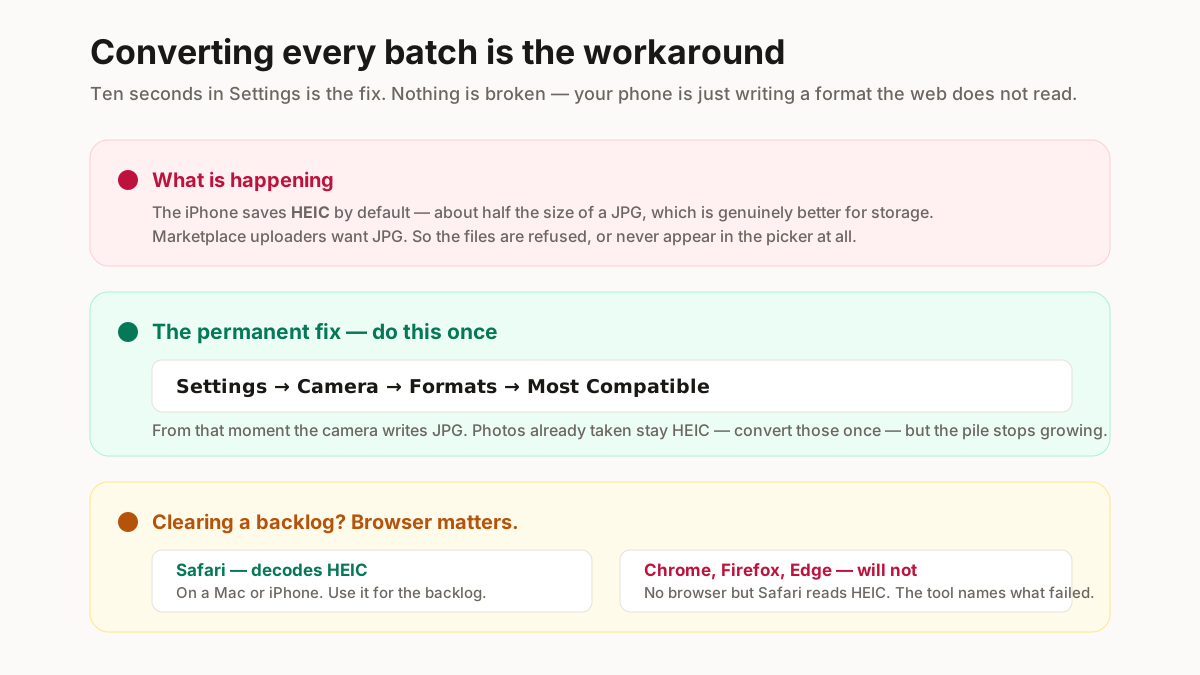
You shoot a range on an iPhone, go to upload to Meesho or Flipkart, and the files are refused or simply do not appear in the picker. Nothing is broken. Your phone is saving HEIC, and marketplace uploaders want JPG.
Apple moved to HEIC because it stores the same photo in roughly half the space. That is genuinely better — for storage. For everything downstream it is a nuisance, because most of the web still does not read it.
The permanent fix, which takes ten seconds
On the iPhone: Settings → Camera → Formats → Most Compatible.
From that moment the camera writes JPG and you never deal with this again. Photos already taken stay HEIC — those need converting once — but nothing new joins the pile. If you are shooting product photos weekly, this single setting is worth more than any converter, including this one.
The catch with converting HEIC in a browser
Worth being straight about, because most tools are not. No browser except Safari decodes HEIC. There is no decoder bundled into this page, so a HEIC file is handed to your browser and either opens or does not.
In practice: Safari converts your HEIC files here. Chrome, Firefox and Edge will mostly fail, and the tool tells you exactly which files failed rather than quietly dropping them.
So if you have a backlog of HEIC to clear, open this page in Safari on a Mac or iPhone. Then change the camera setting so the backlog never rebuilds.
Which format for which job
Three formats matter for a seller, and using the wrong one costs either quality or a rejected upload.
| Format | Use it for | Don’t use it for |
|---|---|---|
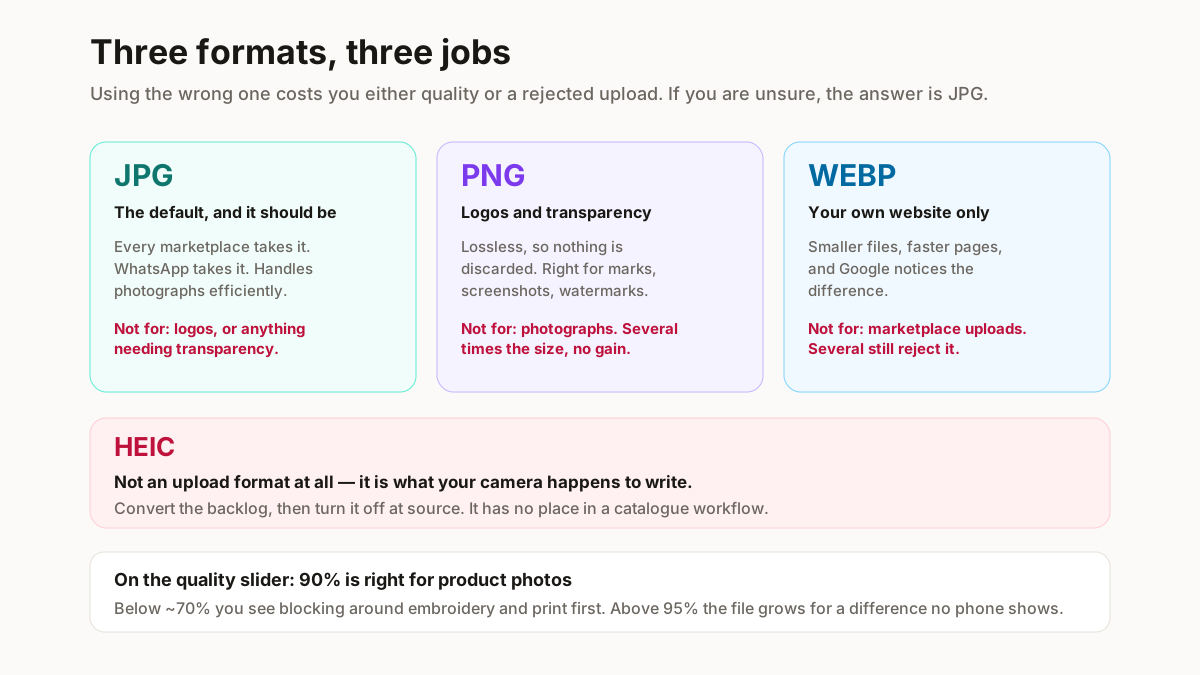
| JPG | Marketplace uploads, WhatsApp, anything photographic | Logos, or anything needing transparency |
| PNG | Logos, watermarks, screenshots, transparency | Photographs — several times the size for no gain |
| WEBP | Your own website, where page speed matters | Marketplace uploads — some uploaders reject it |
| HEIC | Nothing you upload. It is a camera format | Everything else — convert it, or stop producing it |
JPG is the default and should be. Every marketplace takes it, WhatsApp takes it, it handles photographs efficiently. If you are unsure, the answer is JPG.
PNG is for logos and transparency, not photographs. A product photo saved as PNG is several times the size of the same photo as JPG with no visible gain — it is a real cost on a 200-image catalogue and on every page that loads them.
WEBP is for your own website, where smaller files mean faster pages and Google notices. It is the wrong choice for marketplace uploads, because several Indian marketplace uploaders still reject it — which is a frustrating way to discover the format.
The tool warns you when the conversion you have picked is one of these mistakes, rather than doing it silently.
Converting without losing quality
Some conversions are lossless and some are not, and knowing which prevents the slow degradation that ruins a catalogue over a year.
PNG and WEBP-lossless keep every pixel. Converting a PNG to another PNG changes nothing at all.
JPG and WEBP are lossy. Each save discards detail to save space. Once, at a sensible quality, this is invisible. The problem is repetition: a photo opened, saved, resized, saved, converted and saved again has been through four generations of loss, and by then it looks soft in a way you cannot undo.
Two habits that prevent it. Keep your originals and convert from them each time, rather than converting a converted file. And do everything in one pass — this tool resizes while converting for exactly that reason, so you get one re-encode instead of two.
On the quality slider: 90% is the right default for product photos. Below about 70% you start seeing blocks around detailed areas — embroidery and print are where it shows first. Above 95% the file grows fast for a difference nobody can see on a phone.
One thing the tool does quietly: converting a transparent PNG to JPG fills the transparency with white rather than black. JPG has no transparency, and black is what you get by default — which is how a logo ends up on a black square.
Need PDF, or just smaller files?
Two neighbouring jobs that people arrive here looking for, and both have a better page.
Images into a PDF — a catalogue or a rate card — is images to PDF. Going the other way, pulling pages out of a PDF as images, is PDF to JPG. Neither is a format conversion in the sense this page means, and doing them here would produce a worse result.
Same format, smaller file is bulk compress or the image compressor if you have a specific size to hit. This page changes what a file is; those change how big it is.
And if you need marketplace dimensions rather than a format change, the bulk marketplace resizer has the presets for each platform.
Where this sits in the photo workflow
Convert early. It is the first step after getting the photos off the camera, and doing it late means redoing work.
Convert → clean up → resize → watermark → upload.
The reason for that order is that everything downstream assumes a format it can read. Background removal cannot open a HEIC. Neither can most resizers. Converting first means one pass through each later tool instead of discovering the problem three steps in.
The one thing to do after everything else is the watermark — see bulk watermarking for why.
Related free seller tools
Frequently Asked Questions
How many images can I convert at once?
Fifty per batch, with no signup and no email gate. Run a second batch for more — the cap keeps your browser responsive rather than gating anything, since all the work happens on your own machine.
Are my files uploaded anywhere?
No. Conversion happens on a canvas in your browser and the images never leave your device. For unreleased product ranges that matters more than any feature here.
Does it convert HEIC to JPG?
In Safari, yes. In Chrome, Firefox and Edge, usually not — no browser except Safari decodes HEIC and there is no decoder bundled into this page. The tool names the files it could not read rather than dropping them silently. The better fix is Settings → Camera → Formats → Most Compatible on the iPhone, so it stops producing HEIC at all.
Will converting reduce the quality?
It depends on the target. PNG is lossless, so nothing is lost. JPG and WEBP are lossy and discard a little detail each save — once at 90% is invisible, but repeatedly converting an already-converted file degrades it visibly. Convert from your originals each time.
Can I resize while converting?
Yes, by longest edge, and it is worth doing in the same pass — you get one re-encode instead of two. It never upscales: a 600px photo asked to fit 1600 is left alone, because enlarging it would produce a soft image and a bigger file.
Does it keep my filenames?
Yes — the stem is preserved and only the extension changes, so MEERA-KRT-RED-L.heic becomes MEERA-KRT-RED-L.jpg. If two files would collide after conversion, a suffix is added rather than one silently overwriting the other.
Why did my transparent PNG turn out with a white background?
JPG has no transparency, so it has to become something. This tool fills it with white; the browser default is black, which is how a logo ends up on a black square elsewhere. If you need the transparency, convert to PNG or WEBP instead.
Should I use WEBP for marketplace uploads?
No. WEBP is right for your own website, where smaller files mean faster pages, but several Indian marketplace uploaders still reject it. Use JPG for anything going to Meesho, Flipkart, Amazon or Myntra.
If you shoot on an iPhone, change the camera setting rather than converting forever. Settings → Camera → Formats → Most Compatible takes ten seconds and removes the problem permanently. This tool is for the backlog, not for the routine.