What a bulk upload file actually is
A spreadsheet the platform hands you, with one row per product and a column for every attribute it wants. You fill it, upload it, and it either creates the listings or tells you which rows it refused.
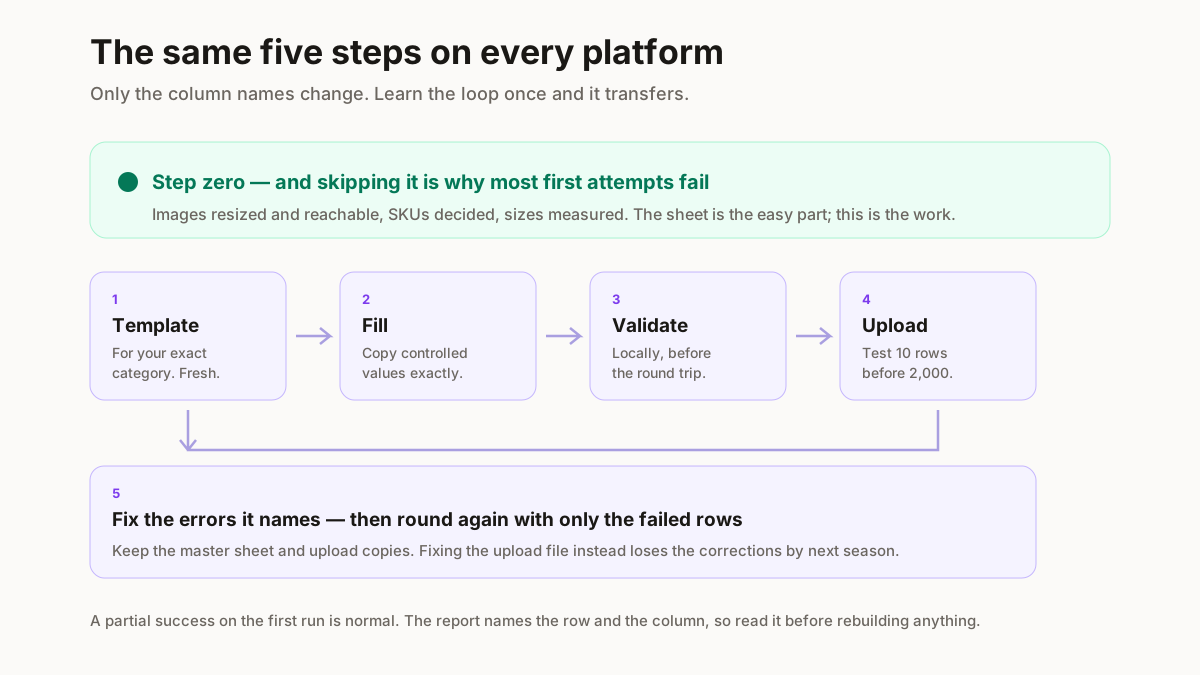
The loop is always the same: template, fill, validate, upload, fix. Learning it once transfers to every platform, because only the column names differ.
The reason it is worth learning is arithmetic. Listing 400 products by hand at three minutes each is twenty hours. The same catalogue as a sheet is an afternoon, and — more importantly — it is repeatable: when you add a colourway next season you edit a row rather than starting a form.
The mistake almost everyone makes on a first attempt is treating the sheet as the work. The sheet is the easy part. The work is having your SKUs, images and size data correct before you open it, which is why the order of operations below matters more than any individual column.
Prepare your images first, not last
This is out of order deliberately, because doing it last is the single biggest cause of a failed upload.
Bulk uploads reject on image specification more often than on data. Every marketplace sets a minimum resolution, a background requirement and a file-size ceiling, and a sheet full of perfect data still fails if the images behind it are 600px phone shots.
Two rules save most of the pain. Resize before you upload, never after — an image the platform downscales is not the image you approved. And if your template takes image URLs rather than uploads, host them somewhere directly reachable: a Google Drive or Dropbox share link is a webpage, not an image, and the crawler will fail it every time.
Get this done in one pass with the bulk marketplace resizer, which outputs the right dimensions per platform, and name the files by SKU so matching them to rows is mechanical rather than manual.
The template is category-specific
Worth stating on its own, because it wastes more time than anything else here.
Bulk templates are not generic. The columns for a kurti differ from the columns for footwear, and a template downloaded for the wrong category will be missing mandatory attributes and fail on every single row — which reads like a broken file rather than a wrong one.
So pull the template for the exact category you are listing into, each time, and re-pull it when you start a new category rather than reusing last month’s. Platforms change mandatory attributes without announcing it, and a stale template is the second most common reason a previously working process suddenly stops.
The fields everyone gets wrong
Written once here, because these are the same across every platform and repeating them per platform would be six copies of the same advice.
Variants: parent and child rows
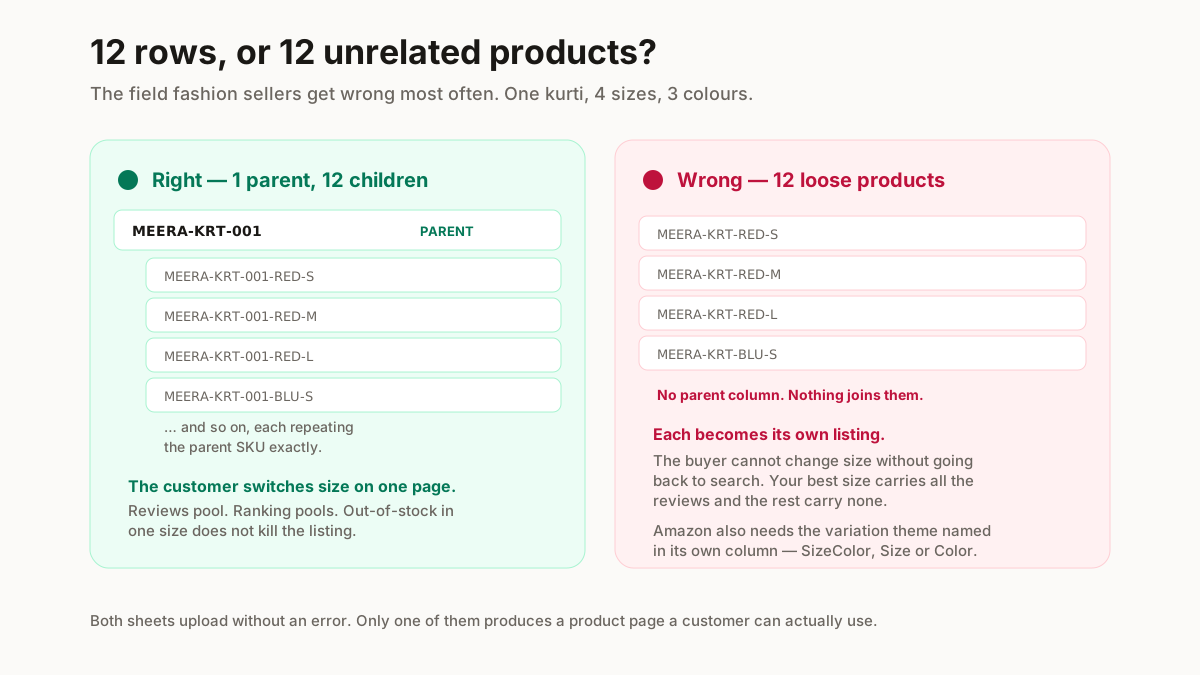
The one that breaks fashion catalogues. A kurti in 4 sizes and 3 colours is not 12 products — it is 1 parent and 12 children, each child repeating the parent SKU exactly. Get it wrong and the platform creates 12 unrelated listings, the customer cannot switch size on the page, and your best-selling size has no relationship to the others in the ranking.
MRP versus selling price
Two different columns, and swapping them is common. MRP is the printed maximum; selling price is what you charge. Selling price above MRP is rejected, and MRP inflated to fake a discount is a policy breach rather than a clever tactic.
HSN and GST rate
Fashion HSN codes are usually 6 or 8 digits and the GST rate follows the product and its price band — apparel is commonly 5% under ₹1,000 and 12% above. Take these from your own invoices rather than guessing; a wrong HSN is a tax problem, not a listing problem.
Controlled values
Any attribute with a dropdown expects the exact string from the allowed list. “Navy Blue” where the list says “Navy” fails. Copy from the allowed-values sheet rather than typing.
SKU codes
Unique, readable, and stable across platforms. Reusing a code from a deleted listing still collides, because the platform remembers. A patterned code makes the whole sheet easier to audit — the SKU generator produces them in bulk.
Meesho catalogue upload
Meesho is the friendliest of the four for a first bulk upload, and the one where image rules bite hardest.
Upload happens in the supplier panel under catalogue. The mandatory set is small — images, price, MRP, size, and the category attributes — and Meesho reviews catalogues before they go live, so a rejection is feedback rather than a silent failure.
The most common Meesho rejection is not a data problem at all: text or a size chart on the primary image. Put the chart in a secondary image and repeat the numbers as text in the description. Our catalogue rejection guide covers the rest, and the catalogue maker builds the sheet.
Start with one catalogue rather than fifty. Getting a single one approved teaches you what the reviewer is checking, and repeating that across the range afterwards is fast.
Flipkart bulk listing
Flipkart draws a distinction the other platforms do not, and it confuses people constantly.
Catalogue and listing are separate things. The catalogue is the product — its title, images and attributes. The listing is your offer against it: price, stock, fulfilment. If a product already exists in Flipkart’s catalogue you attach a listing to it rather than creating it again, which is why your carefully written title sometimes does not appear.
Templates are per category and vertical. Brand approval is the other gotcha: some brands are gated, and a bulk file listing against a gated brand fails at validation with an error that does not obviously say so.
Prepare images to Flipkart’s dimensions before you start — the bulk resizer has the presets.
Amazon flat files
The most powerful and least forgiving of the four.
Amazon calls its bulk templates inventory files or flat files, and they are downloaded per category from Seller Central. Two things trip up fashion sellers specifically.
Browse node selection. The category you pick determines which attributes are mandatory and where the product appears. Wrong node, wrong required fields, and a file that fails wholesale.
The variation theme. Amazon needs to be told explicitly how your variants relate — SizeColor, Size, Color — in a dedicated column, alongside correct parent and child rows. Fashion sellers get this wrong more than any other field, and the symptom is a catalogue of orphaned single products.
Amazon’s templates ship with a validator built in. Run it before uploading; it catches the mechanical errors in seconds and saves a round trip.
Shopify and WooCommerce
Your own store, where nobody reviews your catalogue and the constraints are structural rather than editorial.
Shopify takes a product CSV where variants are additional rows under the same Handle. The handle is the join key — every variant row repeats it, and only the first row of a product carries the title, description and vendor. Leaving those repeated on every row is harmless; getting the handle wrong splits one product into several.
WooCommerce ships a built-in product CSV importer. Variable products need a parent row of type variable and child rows of type variation, each referencing the parent SKU. Attributes have to be declared on the parent before a variation can use them, which is the step people miss.
The advantage of both is that mistakes are cheap: no review queue, no rejection, and re-importing over the top corrects the data. The disadvantage is exactly the same thing — nothing stops you publishing a broken catalogue, so validate it yourself.
Fixing upload errors
A partial success on a first run is normal, not a failure. The error report names the row and the column, so you fix those rows and re-upload them rather than the whole sheet.
| What the error says | What it means | Fix |
|---|---|---|
| Mandatory field missing | A column the category demands is blank | Category attributes differ — refetch the template for your exact category |
| Invalid value for attribute | Free text where a controlled list is expected | Copy the allowed value exactly, including its capitalisation |
| Duplicate SKU | The code already exists on your account | Includes SKUs on deleted listings — bump the suffix |
| Image URL not accessible | The host blocks the crawler or needs a login | Use a direct public link, not a Drive or Dropbox share |
| Image below minimum resolution | Smaller than the category floor | Resize before uploading, never after |
| Invalid HSN | Wrong length or not a real code | Fashion HSN is usually 6 or 8 digits — check against your invoice |
| MRP less than selling price | The two columns are swapped | Almost always a column mix-up, not a pricing decision |
| Variation theme error | Parent and child rows disagree | Every child must repeat the parent SKU exactly |
One habit worth building: keep the master sheet, upload copies. Fix errors in the master so the corrections survive to next season, and upload a filtered copy containing only the failed rows. Sellers who edit the upload file directly lose the fixes and make the same mistakes on the next catalogue.
Buying in bulk, not listing in bulk?
Worth separating, because the same words mean two opposite jobs and search does not distinguish them.
If you are looking to buy a hundred pieces wholesale rather than list them, this is the wrong page. Buying apparel in bulk covers rates, minimums and how to check a supplier before paying.
If you have the stock and need it live, you are in the right place — and the order is images, SKUs, sheet, upload.
Related free seller tools
Frequently Asked Questions
How many products can I upload at once?
Platform limits are generous — typically thousands of rows per file — and are rarely what constrains you. What constrains you is validation: a 2,000-row file with a systematic error fails 2,000 times. Upload a 10-row test slice first, confirm it lands correctly, then send the rest.
Can I edit existing listings in bulk?
Yes on every platform here, and it is the most underused part of bulk upload. Export your current listings, change the price or stock column, re-upload. A seasonal price change across 300 SKUs is a five-minute job rather than a day of clicking.
Why did my bulk upload file fail?
In order of likelihood: the template was pulled for the wrong category, a controlled-value field has free text in it, images are below the minimum resolution or not publicly reachable, or parent and child variant rows do not match. The error report names the row and column — read it before rebuilding the sheet.
Do my images need to be hosted online?
It depends on the template. Some take direct uploads, others take image URLs. If yours takes URLs, the link must resolve straight to the image file — a Google Drive or Dropbox share link is a webpage wrapping the image and will fail. Resize to the category minimum before uploading, never after.
Can I use one file for two marketplaces?
Not directly, because required columns and controlled values differ. What does transfer is your own master sheet — one row per product with your SKUs, prices, sizes and image filenames — which you then map into each platform template. Keeping that master is what makes the second marketplace fast.
How do I structure size and colour variants?
As one parent row and one child row per combination, with every child repeating the parent SKU exactly. A kurti in 4 sizes and 3 colours is 1 parent and 12 children, not 12 products. Amazon additionally needs the variation theme stated in its own column. This is the field fashion sellers get wrong most often.
Column names, mandatory attributes and image rules change without announcement. Pull a fresh template for your exact category each time rather than reusing an old one — a stale template is the most common reason a process that worked last season suddenly fails.