Flipkart label crop: shipping label to 4×6, invoice off
By StitchMagic team · Last checked 4 October 2026
Listing on Meesho? ListMagic fills the catalog form for you. Free to start.
Flipkart preset: keeps the top 46% of each page, full width. Adjust it with the sliders if your sheet differs.
Drop your Flipkart label PDF here, or click to choose it
Runs in your browser · your customers’ addresses never leave this tab · no signup
Selling on Meesho too? ListMagic is our Chrome extension that fills the Meesho Supplier Panel catalog form while you pack. Free to start; it works on Meesho, not Flipkart.
Shipping label kept, invoice off
Flipkart label crop: the top 46% of every page
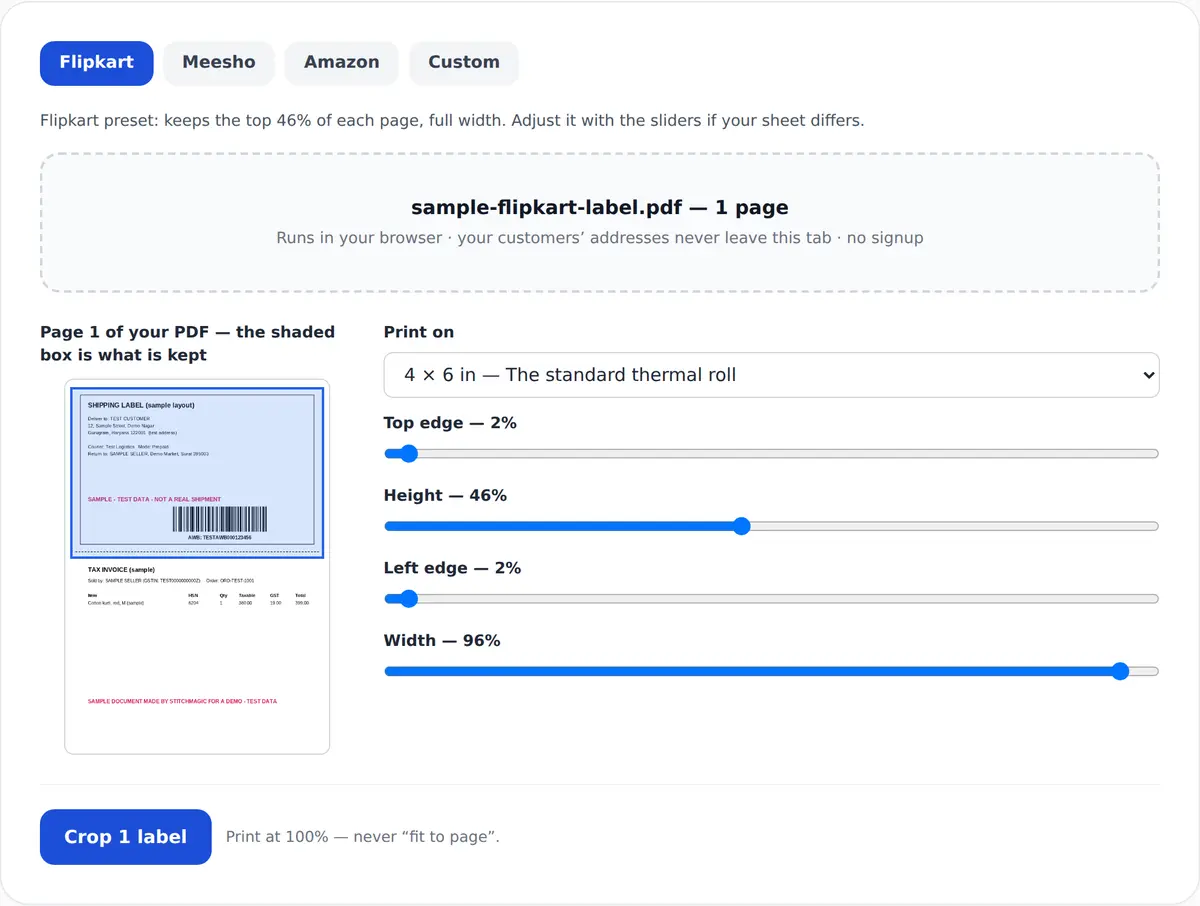
Flipkart shipping label size after cropping
46%
of the page kept, full width (adjustable)
4 × 6 in
101.6 × 152.4 mm output label
100
shipments per merged Flipkart PDF, at most
100%
print scale: never “fit to page”
Sources: Flipkart Order Management API reference; NIST Handbook 44; StitchMagic tool code. Retrieved 4 Oct 2026.
| Item | Value | Source |
|---|---|---|
| What Flipkart gives you | Integrated shipping label and invoice (invoice optional, printed when auto-invoicing is on); several shipments merged into one PDF, up to 100 per request | Flipkart Order Management API reference |
| What sits in the label box | A seller guide lists the routing hub, destination PIN code, customer address, return address, AWB barcode and an SKU summary | Third-party seller guide, retrieved 4 Oct 2026 |
| Output label (default) | 4 × 6 in = 101.6 × 152.4 mm | 1 in = 25.4 mm exactly, NIST Handbook 44 |
| Flipkart crop window | Top 46% of the page, full width, adjustable | StitchMagic preset (tool code) |
| A4 sheet, for reference | 210 × 297 mm | ISO 216:2007 |
| Print scale | 100% / actual size | StitchMagic print instruction |
Sources: Flipkart Order Management API reference; ISO 216:2007. Retrieved 4 Oct 2026.
One batch, one window
How to crop a Flipkart label
- 1
Download the batch
In Seller Hub, select the packed orders and download their labels as one PDF.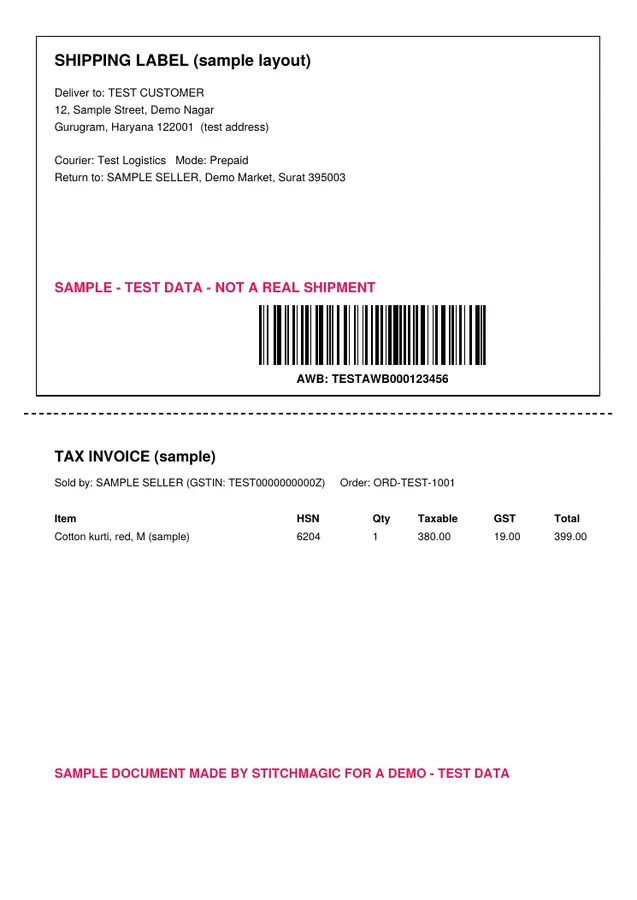
Sample A4 sheet we made with test data, in the Flipkart-style layout: label on top, invoice below. - 2
Check the window
The AWB barcode, the routing details at the top of the label and the delivery address must sit inside the shaded box. If not, move the Height slider. - 3
Crop, print, dispatch
Crop at 4 × 6 in and print at 100%. Mark the orders Ready to Dispatch and download the manifest, the list of orders for the logistics partner.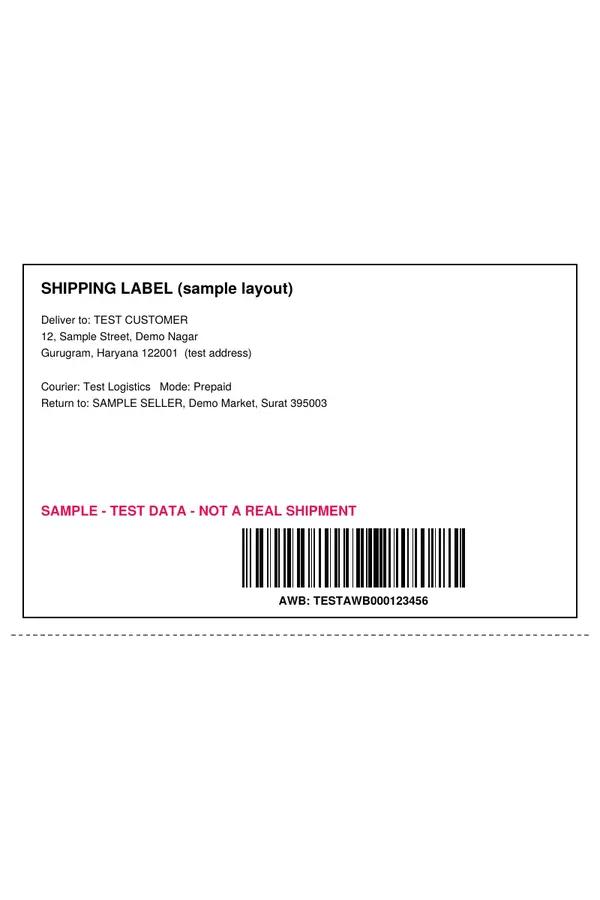
Real output of our cropper on that sample: 4 × 6 in, invoice left behind.
Merged PDFs, Ready to Dispatch and manifest: Flipkart Order Management API overview, retrieved 4 Oct 2026. More tools: marketplace seller tools and guides.
Listing on Meesho as well?
Flipkart label crop with or without the invoice
Why the invoice is on the sheet
Keep the routing details
Sellers on an integration
Sources: Flipkart API reference and label-only endpoint, retrieved 4 Oct 2026; routing details from a third-party seller guide. Crop your Flipkart labels ↑
Flipkart label printing problems and fixes
| Problem | Fix |
|---|---|
| The label isn’t ready to download | Flipkart’s docs say labels and invoices usually take 5–10 seconds and can take up to 30 minutes under system load. Wait and retry. |
| The bottom of the address is cut | Raise the Height slider and check page one again. |
| You used the Meesho window | Switch to the Flipkart preset: 46%, not 52%. |
| The barcode prints small or won’t scan | The PDF went through “fit to page”. Reprint at 100%. |
| Labels spill across two stickers | Set the printer’s paper size to 4 × 6 in (101.6 × 152.4 mm). |
| The courier asks for a list at pickup | Mark the orders Ready to Dispatch and download the manifest. |
Source for the timing and manifest rows: Flipkart Order Management API overview, retrieved 4 Oct 2026.
Free, and your customers’ addresses stay on your computer
Free, no signup, no watermark
The PDF is read and cropped inside your browser tab and never uploaded, which matters for a file listing the day’s names and addresses. The tool only cuts and resizes the page; nothing Flipkart printed is edited.Your Meesho catalog form, filled for you
Related free seller tools
Frequently asked questions
How do I crop a Flipkart shipping label to 4×6?
Download the labels from Seller Hub as one PDF, drop it into the tool, check the 46% window on page one, and crop at 4 × 6 in. Print at 100%.
Why is there an invoice on my Flipkart shipping label?
Flipkart produces the label and invoice as one integrated document, and the invoice is included when auto-invoicing is enabled. The crop keeps only the label.
What size is a Flipkart label after cropping?
4 × 6 inches, or 101.6 × 152.4 mm. 100 × 150 mm, A5 and “keep cropped size” are also in the output menu.
Why can’t I download my Flipkart label yet?
Flipkart’s documentation says labels usually take 5–10 seconds to generate and can take up to 30 minutes under load. Wait, then download again.
Can I crop a whole day of Flipkart orders at once?
Yes. Flipkart merges several shipments into one PDF, and the tool applies the same window to every page. Check page one before you run the batch.
Is my label PDF uploaded?
No. It is opened, cropped and saved inside your browser tab.
Official sources: Flipkart Order Management API overview · Label-only PDF endpoint. Retrieved 4 Oct 2026.