Amazon label crop for Easy Ship and Self Ship labels
By StitchMagic team · Last checked 4 October 2026
Listing on Meesho? ListMagic fills the catalog form for you. Free to start.
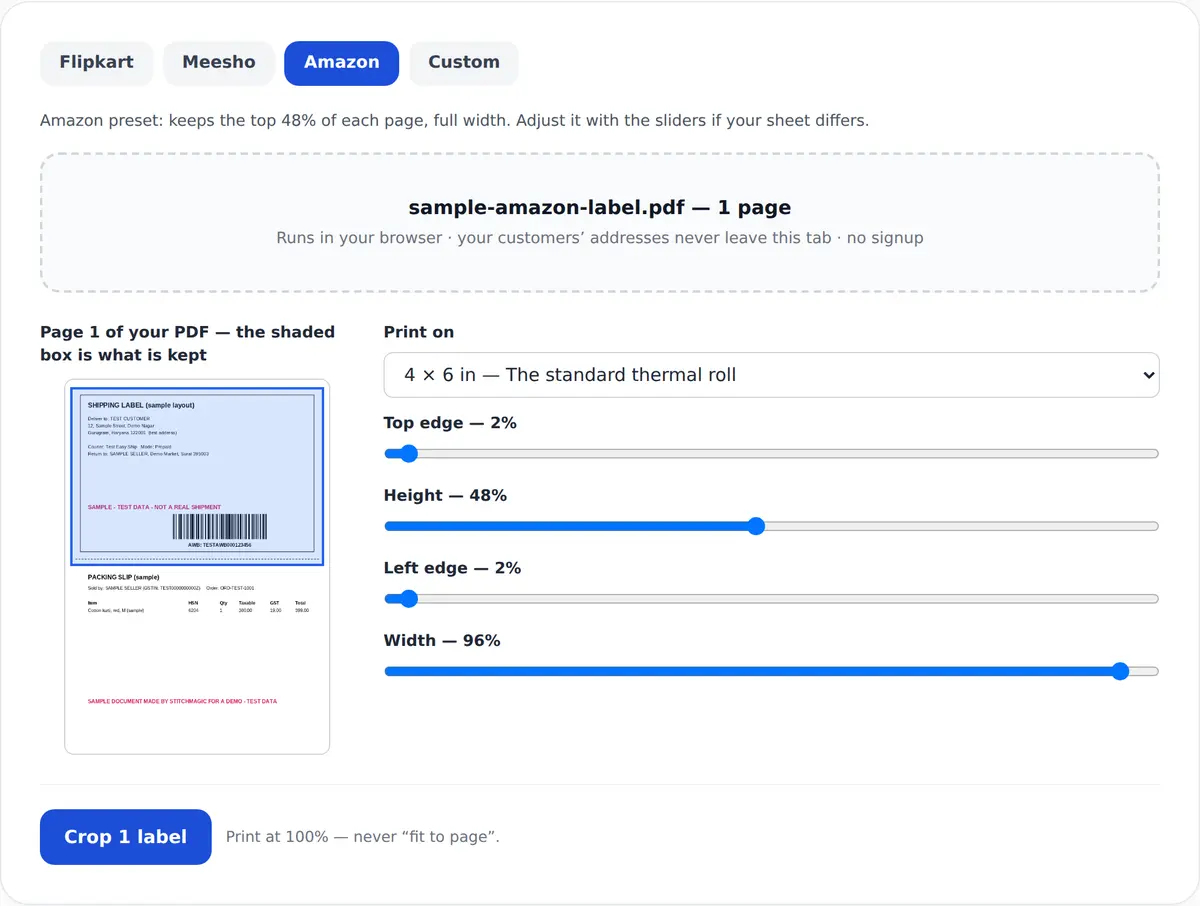
Amazon preset: keeps the top 48% of each page, full width. Adjust it with the sliders if your sheet differs.
Drop your Amazon label PDF here, or click to choose it
Runs in your browser · your customers’ addresses never leave this tab · no signup
Also listing on Meesho? ListMagic is our Chrome extension that fills the Meesho Supplier Panel catalog form. Free to start; it works on Meesho, not on Seller Central.
Easy Ship and Self Ship
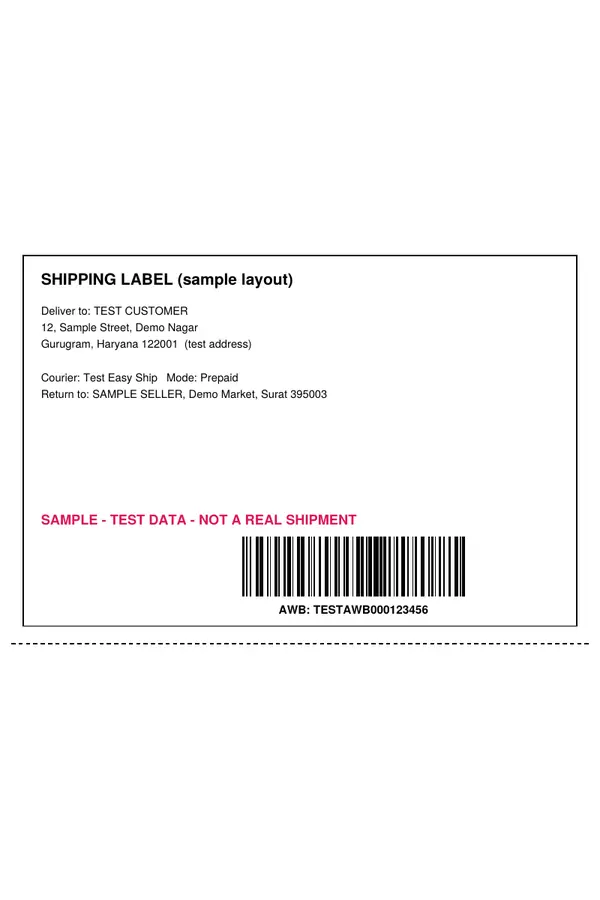
Amazon label crop at 4 × 6 in, the size Amazon asks for
What you get
- 4 × 6 in (101.6 × 152.4 mm) label PDF, one label per page.
- The Amazon preset starts at the top 48% of the page; fit it to your route’s sheet before cropping.
- Print at 100% on sticky label paper and paste it on a flat, visible side of the package.
Sources: Amazon staff answer on Easy Ship labels, retrieved 4 Oct 2026; NIST Handbook 44; StitchMagic tool code.
Amazon label crop by route: Easy Ship, Self Ship, FBA
| Route | Who packs | Who delivers | Label you print |
|---|---|---|---|
| Easy Ship | You | An Amazon Logistics delivery associate, after you schedule a pick-up | Shipping label, available once the pick-up is scheduled |
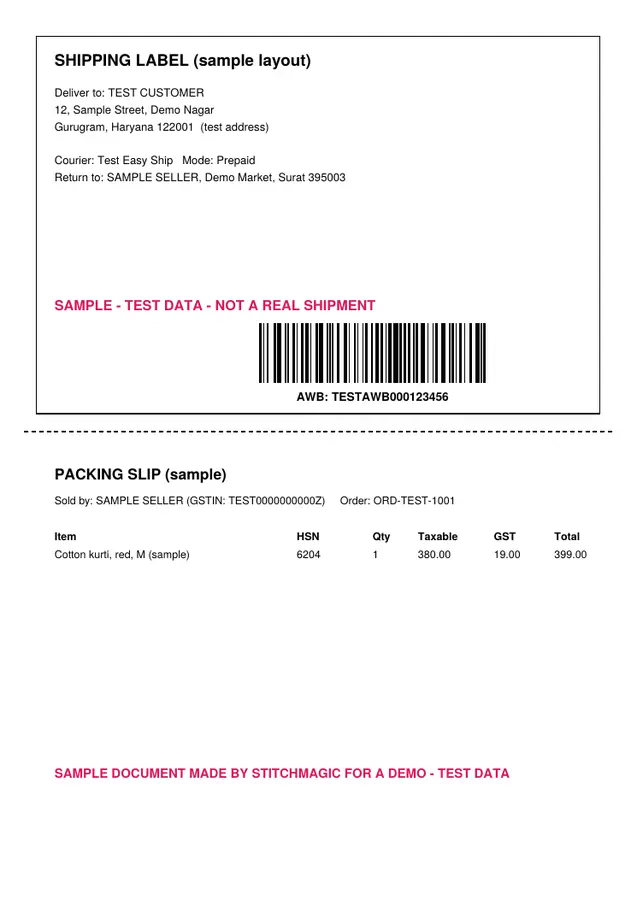
| Self Ship | You | Your own delivery associates or a third-party carrier | Shipping label and packing slip on one sheet, split along a dotted line |
| FBA | Amazon | Amazon | No customer shipping label: Amazon stores, packs and delivers |
Easy Ship
Self Ship
FBA
Sources: Amazon.in: shipping and fulfilment; Amazon Easy Ship; Amazon guide to Self Ship (2016). Retrieved 4 Oct 2026.
Selling the same products on Meesho?
How to crop an Amazon Easy Ship label
- Schedule the pick-up. Orders > Manage Orders > Easy Ship tab, Schedule Pick-up, then weight, dimensions and a slot. The label becomes available after that.
- Save the label as a PDF and drop it into the tool. Page one appears with the top 48% shaded.
- Fit the window. Move the Height slider until the barcode and full address sit inside the box.
- Crop at 4 × 6 in. The same window is applied to every page of the file.
- Print at 100% on 4 × 6 in sticky label paper.
Steps: Amazon staff answer, retrieved 4 Oct 2026. More tools on marketplace seller tools and guides.
Amazon shipping label size
| Item | Value | Source |
|---|---|---|
| Output label (default) | 4 × 6 in = 101.6 × 152.4 mm | NIST Handbook 44 |
| Amazon crop window | Top 48%, full width: a starting point | StitchMagic preset |
| A4 sheet | 210 × 297 mm | ISO 216:2007 |
| Print scale | 100% / actual size | StitchMagic print instruction |
Retrieved 4 Oct 2026. Crop your Amazon labels ↑
Amazon label crop problems and fixes
The window fit last week and now cuts the label
No label to download yet (Easy Ship)
The packing slip shows on the label
The page has two or four labels on it
The barcode prints small
One label spills over two stickers
Route facts: Amazon.in seller pages, retrieved 4 Oct 2026. Tiled sheets: third-party seller tools, not Amazon.
Free, with nothing uploaded
No signup, no watermark
Your Seller Central PDF is read and cropped inside the browser tab and never sent to a server. A label carries the buyer’s name and address, so it shouldn’t sit on someone else’s server. The crop only cuts and resizes; your original PDF is left as it was.Let ListMagic fill your Meesho catalog form
Related free seller tools
Frequently asked questions
How do I print an Amazon Easy Ship label on 4×6?
Schedule the pick-up in Manage Orders > Easy Ship, save the label PDF, crop it here at 4 × 6 in, and print at 100% on sticky label paper.
What size is an Amazon shipping label?
Amazon’s seller guidance for Easy Ship is 4 × 6 inch sticky label paper, which is 101.6 × 152.4 mm.
Do FBA sellers need to print shipping labels?
No. Under FBA Amazon stores, packs and delivers the order. FBA sellers print FNSKU product labels instead, which this tool doesn’t make.
Can I remove the packing slip from an Amazon Self Ship label?
Yes. Set the crop window to end at the dotted line that Amazon’s guide says separates the shipping label from the packing slip.
Why does my Amazon crop window stop fitting?
Usually because the order is on a different route. Easy Ship and Self Ship sheets are not the same, so check page one in the preview and adjust the slider.
Is my Seller Central PDF uploaded?
No. It is opened, cropped and saved in your browser tab.
Official sources: Amazon.in fulfilment options · Amazon Easy Ship · Amazon: guide to Self Ship (2016). Retrieved 4 Oct 2026.