Meesho label crop: Ready to ship PDF to 4×6 thermal labels
By StitchMagic team · Last checked 4 October 2026
Listing on Meesho? ListMagic fills the catalog form for you. Free to start.
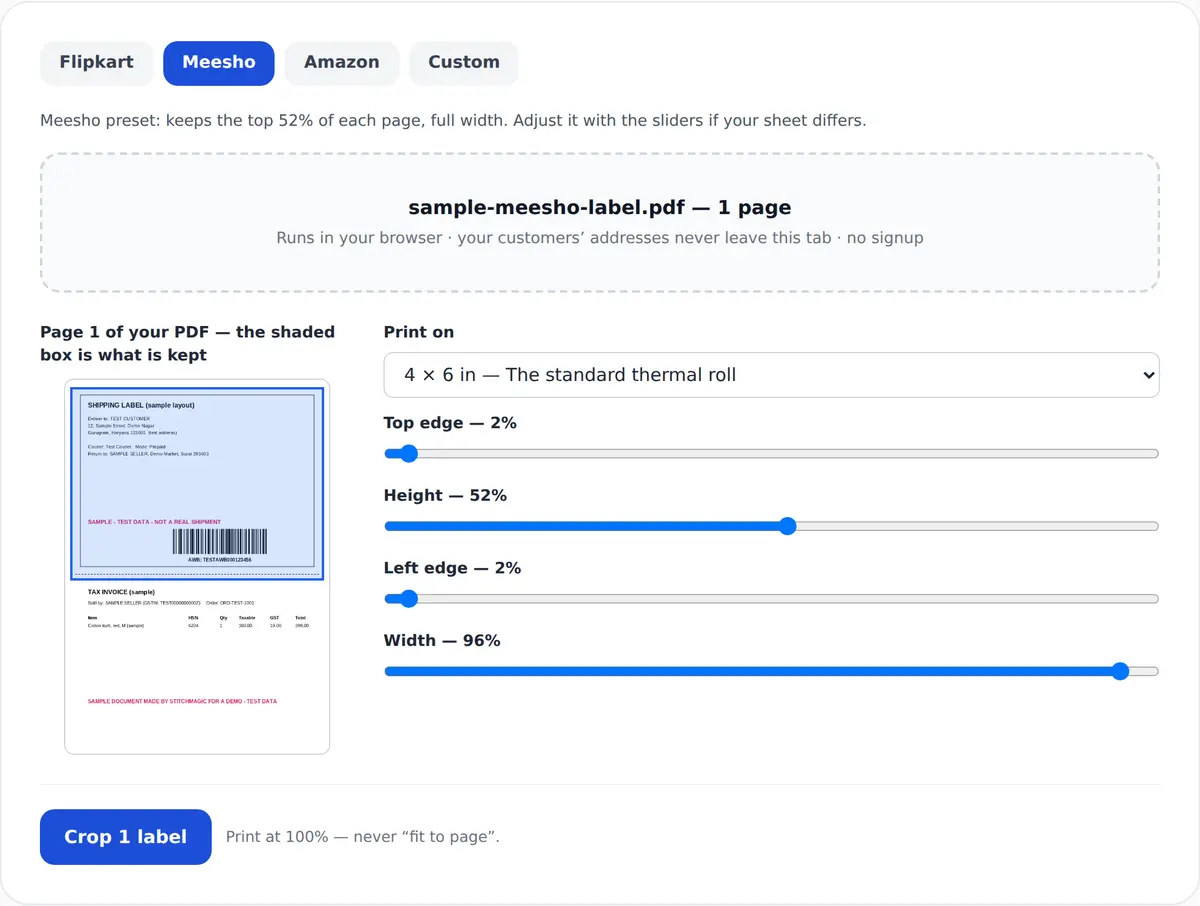
Meesho preset: keeps the top 52% of each page, full width. Adjust it with the sliders if your sheet differs.
Drop your Meesho label PDF here, or click to choose it
Runs in your browser · your customers’ addresses never leave this tab · no signup
Labels are the last step; the listing decides whether there is an order to label. ListMagic is our Chrome extension that fills the Meesho Supplier Panel catalog form for you. Free to start.
What the crop does
Meesho label crop: the A4 sheet in, a 4 × 6 in label out
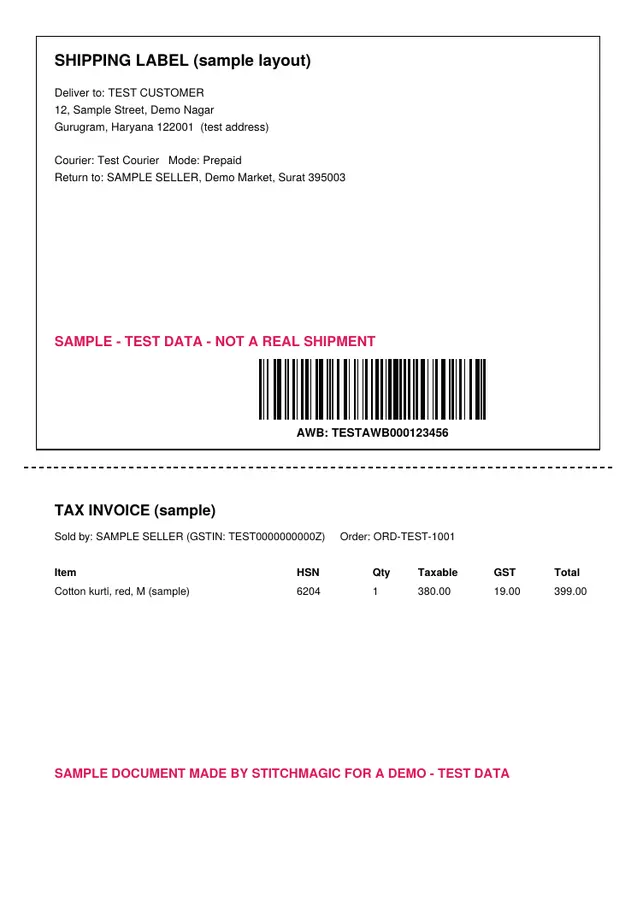
A4 sheet: label + invoice (sample)
Sample A4 label we made with test data, in the Meesho layout: label on top, invoice below. Not a real Meesho label.
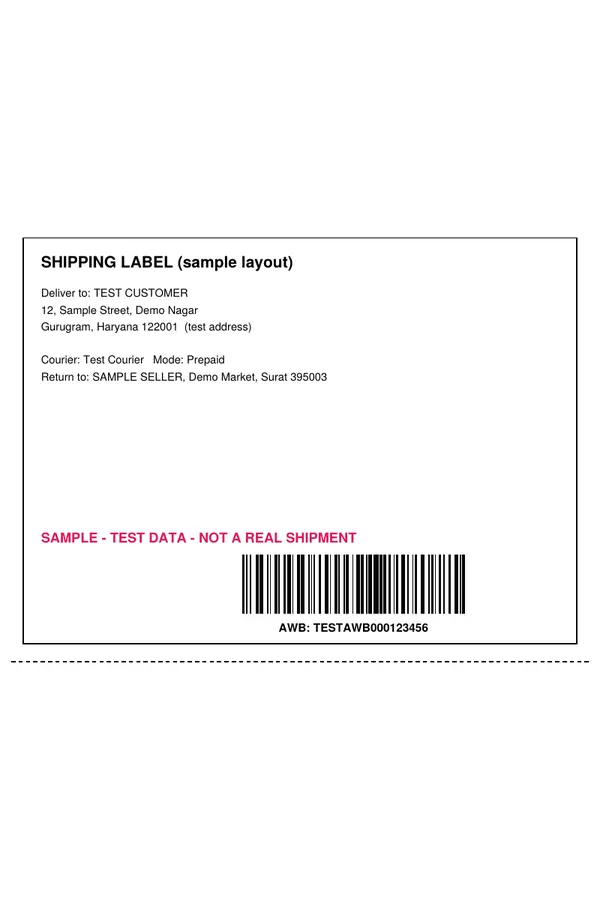
4 × 6 in label only
Real output of our cropper on that sample: the label part only, on a 4 × 6 in page.
Before the 11 AM cut-off
How to crop Meesho labels
- 1
Download the labels
In the Supplier Panel open Orders, then the Ready to ship tab, and download the labels for the orders you are packing. - 2
Drop the PDF in
Page one appears with the Meesho window shaded over the top 52% of the page. - 3
Check the window
The barcode and the whole address block must sit inside the box. If the last line is cut, raise the Height slider. - 4
Crop and print
Leave the output at 4 × 6 in and press Crop; one window covers every page. Print at 100% and print the manifest before the pickup agent arrives.
Source for the Ready to ship tab, the 11 AM cut-off and the manifest: Meesho learning hub, retrieved 4 Oct 2026. Lost in the panel? The Supplier Panel guide maps it.
Labels done? The listing comes first
Meesho label size: what the crop keeps
| Item | Value | Source |
|---|---|---|
| Output label (default) | 4 × 6 in = 101.6 × 152.4 mm | 1 in = 25.4 mm exactly, NIST Handbook 44 |
| Meesho crop window | Top 52% of the page, full width, adjustable | StitchMagic preset (tool code) |
| Flipkart window, for comparison | Top 46% of the page | StitchMagic preset (tool code) |
| A4 sheet (if you print the whole page) | 210 × 297 mm | ISO 216:2007 |
| A6 sheet (not the same as 4 × 6 in) | 105 × 148 mm: 3.4 mm wider and 4.4 mm shorter | ISO 216:2007; arithmetic |
| What the Meesho PDF holds | Seller guides say: shipping label above, tax invoice below | Third-party seller guide, retrieved 4 Oct 2026 |
| Print scale | 100% / actual size | StitchMagic print instruction |
Sources: ISO 216:2007; NIST Handbook 44, Appendix B. Retrieved 4 Oct 2026. If your sheet looks different, the page-one preview shows it before you crop.
Meesho label crop with invoice, on thermal or A4
Keeping the tax invoice
Save the original PDF with the day’s orders; it is the record your accountant will ask for. Need the invoice on paper too? Print those pages from the original.
Printing on thermal or A4
- Thermal: load 4 × 6 in labels (101.6 × 152.4 mm), set the same paper size in the print dialog, print at 100%.
- Home printer: pick A5 in the Print on menu, or keep 4 × 6 in on plain A4 (210 × 297 mm), at 100% either way.
- Cut, don’t fold: a fold across the barcode can stop it scanning. Tape the label flat on the bag.
Sizes: ISO 216:2007 and NIST Handbook 44, retrieved 4 Oct 2026. Crop your Meesho labels ↑
Meesho label crop problems and fixes
The last line of the address is cut off
You used the Flipkart window on a Meesho file
The label prints small or the barcode won’t scan
One label spreads over two stickers
Pickup comes a day late
Labels in the PDF don’t match the parcels on the table
Cut-off and Ready to ship tab: Meesho learning hub, retrieved 4 Oct 2026. Presets: StitchMagic tool code.
Free, private, and what the crop changes
Free
Nothing uploaded
Cut and resize only
Original untouched
Next catalog to list on Meesho?
Related free seller tools
Frequently asked questions
How do I crop a Meesho label?
Download the labels from the Ready to ship tab, drop the PDF into the tool, check the window on page one, and press Crop. Print the result at 100%.
Can I crop a Meesho label with the invoice?
The crop keeps the shipping label only. The tax invoice stays in your original PDF, which the tool does not change, so print the invoice pages from that original if you need them on paper.
What size is a Meesho label after cropping?
4 × 6 inches, which is 101.6 × 152.4 mm. 100 × 150 mm, A5 and “keep cropped size” are also in the output menu, and the crop window stays the same whichever you pick.
Why is the Meesho window different from the Flipkart one?
The Meesho preset keeps the top 52% of the page where the Flipkart preset keeps 46%, so the whole Meesho address block fits. If the bottom line is still cut on your sheet, raise the Height slider.
When should I download Meesho labels for same-day pickup?
Before 11 AM, as Meesho’s learning hub states. Print the manifest from the Ready to ship tab before the pickup agent arrives.
Are my customers’ addresses uploaded anywhere?
No. The PDF is opened, cropped and saved inside your browser tab and is never sent to a server.
Official sources: Meesho: how to package and process orders (Ready to ship tab) · Meesho: common mistakes (11 AM label cut-off, manifest). Both retrieved 4 Oct 2026.