How to make barcodes in bulk from Excel
Three steps, and the whole thing takes about a minute for a few hundred SKUs.
1. Get your list in
Paste a column straight out of Excel — select the cells, copy, paste into the box. Two columns paste fine too, and the second one becomes the caption line printed under each barcode. Or upload the .xlsx or .csv and pick the columns afterwards.
| Column A — SKU (what gets encoded) | Column B — Caption (optional) |
|---|---|
| MEERA-KRT-RED-L | Kurti · Red · L |
| MEERA-KRT-RED-M | Kurti · Red · M |
| MEERA-SAR-GRN-FS | Saree · Green |
Two columns, header row optional. The tool reads the file and asks which column is which, so the order does not matter.
2. Pick the type and the label size
Code 128 is the right default for your own SKUs — it takes letters and numbers, any length. Then choose the sticker sheet you actually bought, because a barcode sized for the wrong sheet is 65 wasted labels.
3. Download and print
You get a PDF laid out for that sheet, or a ZIP of PNGs named after your SKUs. If the sheet is part-used, set start at label to the first empty one and the tool skips the rest.
Nothing is uploaded anywhere. The encoding happens in the page, which is why there is no size limit worth speaking of and no account to make.
Which barcode type should you use?
Four options, and for most sellers the answer is the first one.
| Type | What it holds | Use this when |
|---|---|---|
| Code 128 | Letters and numbers, any length | Your own SKUs. The default, and what your own scanner reads. |
| Code 39 | A-Z, 0-9 and a little punctuation | An older warehouse scanner insists on it. Otherwise skip it. |
| EAN-13 | Exactly 13 digits | Retail shelves, where the number has to be registered to you. |
| UPC-A | Exactly 12 digits | US retail. Rarely what an Indian seller needs. |
The GS1 part nobody mentions
You can generate a valid EAN-13 here and it will scan. That does not make it yours. Retail EANs are built on a company prefix bought from GS1, and a self-generated one can collide with a real product on someone else’s shelf.
For internal use — your own stock, your own scanner, a polybag going to a marketplace — that does not matter and Code 128 is better anyway. It matters the moment you sell into a shop that scans at a till.
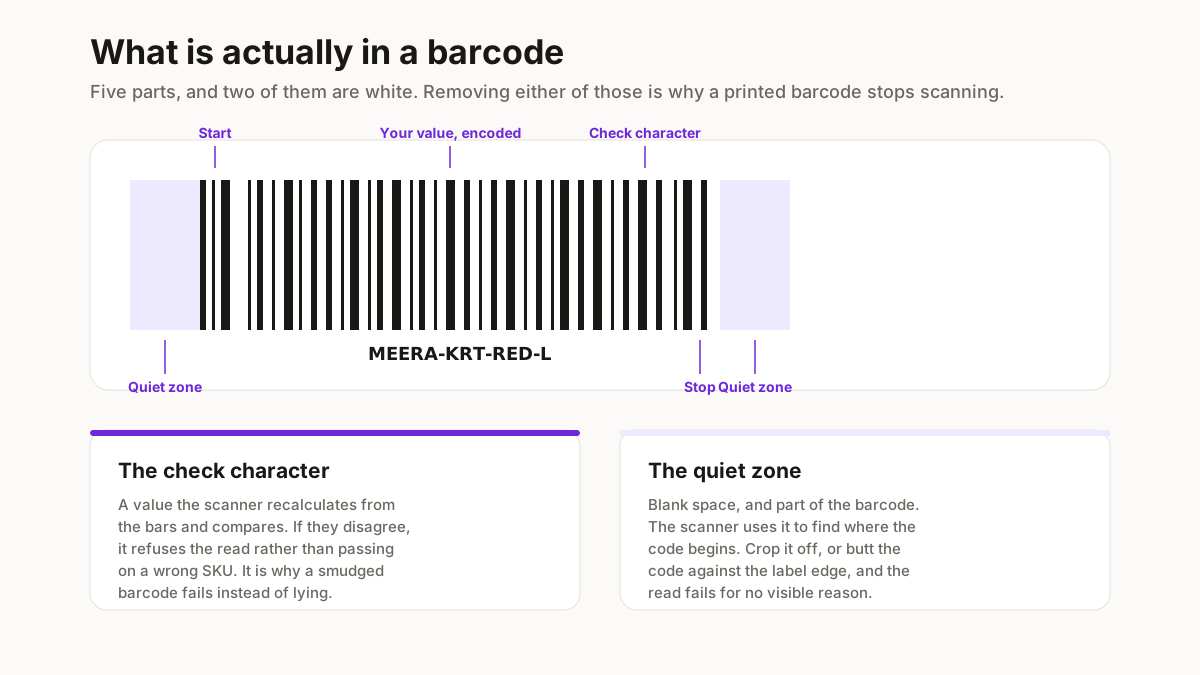
So: Code 128 for anything internal, EAN-13 only when you have the GS1 prefix to go with it. The tool calculates the check digit either way, and quietly fixes it when a pasted 13-digit number has the wrong one — which is the most common reason a copied EAN will not scan.
Label sizes for Indian marketplaces
The sizes below are the ones actually in use. Pick the preset that matches the sheet you bought rather than resizing afterwards.
| Where it goes | Size | Preset to pick |
|---|---|---|
| Sticker sheet, most common | 38.1 × 21.2 mm, 65 to a page | A4 sheet, 65 labels |
| Sticker sheet, with a caption | 63.5 × 33.9 mm, 24 to a page | A4 sheet, 24 labels |
| Middle size, general use | 45.7 × 25.4 mm, 40 to a page | A4 sheet, 40 labels |
| Polybag label, thermal roll | 50 × 25 mm, one per page | Thermal roll, 50 × 25 mm |
| Courier label area, thermal | 76.2 × 50.8 mm (3 × 2 in) | Thermal roll, 3 × 2 in |
Anything else goes in as a custom width and height in millimetres, and the tool works out how many fit on A4.
A note on the small sheet: 38 mm is not much room for a long SKU. The tool draws it to scale in the preview, so if the bars look impossibly thin on screen they will be impossibly thin on paper. Shorten the SKU or move up a size — those are the only two fixes, and finding out here costs nothing.
Printing and scanning: the checklist
Print at 100%, never “fit to page”
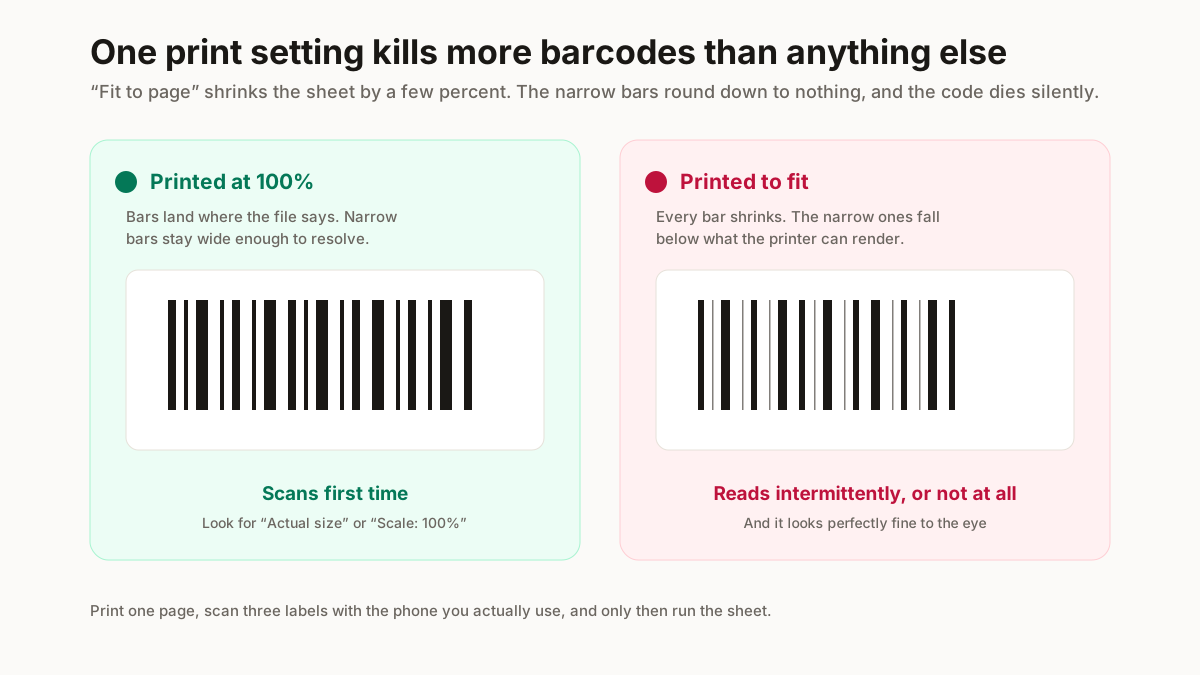
This is the single biggest cause of barcodes that will not scan, and it is entirely invisible until someone tries. Scaling to fit shrinks the bars by a few percent, the narrow bars round down to nothing on the printer, and the code dies. In the print dialog, look for Actual size or Scale: 100%.
Leave the quiet zone alone
The blank margin either side of the bars is part of the barcode. A scanner uses it to find where the code starts. This tool builds it in, which is why the bars do not run to the edge of the label — that white space is not padding.
Laser over inkjet, if you have the choice
Inkjet ink spreads slightly into the paper, thickening the bars and narrowing the gaps. It works at larger sizes and struggles at 38 mm. A thermal printer at 203 dpi is better than either for polybag labels.
Test one before you print sixty-five
Print a single page, scan two or three with the phone you actually use, and only then run the sheet. Thirty seconds against a wasted pack of stickers.
Related free seller tools
Frequently Asked Questions
Is this bulk barcode generator free?
Yes, and there is no signup. Five hundred barcodes run free in one go; past that you can leave a WhatsApp number and the ceiling goes to five thousand. Nothing is watermarked and nothing expires.
Do you store my SKU list?
No. The encoding and the PDF are both built inside your browser, so the list never reaches a server. That is also why it works with the tab offline once the page has loaded.
Can I use an EAN-13 barcode without registering with GS1?
For your own internal stock, yes — it will scan on your own equipment. For retail, no: a genuine retail EAN is built on a GS1 company prefix, and a self-generated one can collide with another product. Use Code 128 for internal work, which has no registry at all and holds letters as well as numbers.
Why will my printed barcode not scan?
Almost always because it was printed with "fit to page" rather than at 100%, which shrinks the narrow bars below what the scanner can resolve. After that, the usual causes are an inkjet spreading ink at a small label size, or a SKU too long for a 38 mm label. Print a test page and scan it before running the sheet.
Can I put the product name under the barcode?
Yes. Paste a second column, or upload a sheet with two, and pick it as the caption. It prints as a small line under the code and is trimmed rather than allowed to run into the next label.
Does Meesho need barcodes on my products?
Meesho does not require you to put a product barcode on the item. What the courier scans is the shipping label Meesho generates for you. Barcodes here are for your own stock control — finding a SKU on a shelf, checking a return in — which is where they save real time.
Can I start halfway down a part-used sticker sheet?
Yes, and it is the setting most tools leave out. Set "start at label" to the first empty position and the tool leaves the used ones blank rather than wasting the sheet.
Everything here runs in your browser. Your SKU list is never uploaded, which is also why there is no account to make. A self-generated EAN-13 will scan on your own equipment but is not registered to you — use Code 128 for internal stock.