Watermark a wholesale price list before you send it
The concrete reason a seller ends up on this page.
You send a rate card to a buyer on WhatsApp. He forwards it to his brother-in-law, who forwards it to a group of forty resellers, and within a week your prices are being quoted back at you by someone you have never met — with no idea where the sheet came from. No watermark prevents that leak. What it gives you is a copy you can sign.
A diagonal watermark carrying your shop name and number does two useful things. It keeps attribution on the document wherever it travels, so a buyer three forwards away knows who to call. And it makes the sheet obviously yours, which quietly discourages a competitor from passing your rates off as his own.
Settings worth copying
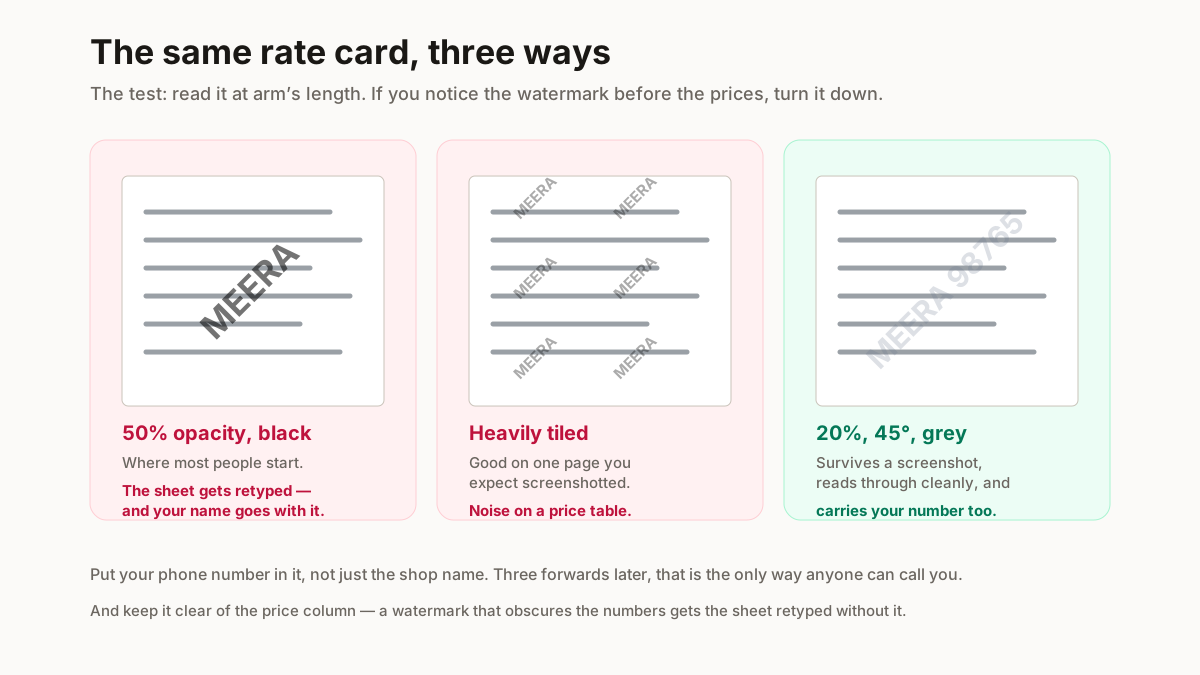
Your shop name and phone number on one line. 20% opacity, 45 degrees, grey instead of black, tiled if the sheet is a single dense page and centred if it runs to several. Keep it clear of the price column — a watermark that makes the numbers hard to read gets the document retyped, which loses your name entirely.
Build the rate card itself with the catalogue maker or WhatsApp catalogue maker, then mark it here before it goes out.
Settings that look professional
Four decisions, and the default instinct is wrong on three of them.
Opacity: 15–25%. High enough to survive a screenshot, low enough to read through. Most people start at 50% and produce a document nobody can use.
Angle: 45°, or flat. The diagonal is conventional because it crosses the page without following any line of text. Flat along the bottom is the other good answer and is better on a dense table.
Colour: grey, never pure black. Black at 20% opacity still reads as a smudge over text; mid-grey disappears into the page while staying visible.
One mark, or a light tile — not ten heavy ones. Tiling is for a single page you expect to be screenshotted. On a multi-page document a single centred mark per page is cleaner and does the same job.
The test: read the document at arm’s length. Notice the watermark before the content and it is too strong — turn it down.
Add a stamp to a PDF: approved, paid, received
A stamp is a different job from a watermark and the tool has a separate tab for it, because the settings that make a watermark good make a stamp useless.
A watermark is translucent, diagonal and centred. It answers “whose document is this?” A stamp is opaque, upright, boxed and in a corner. It answers “what happened to this document?” — approved, paid, received, void. Nobody wants a faint 20% diagonal PAID across an invoice; they want a firm red box in the corner that reads at a glance.
Doing it here
Switch to the Stamp tab, pick a preset or type your own wording, choose a corner, and leave the box on. Top-right is conventional for approvals because it is where a reader’s eye lands first and it does not collide with a letterhead.
The wording that gets used
Keep it to one word where you can — APPROVED, PAID, RECEIVED, VOID, COPY, DRAFT. A stamp is read peripherally rather than read, so a sentence defeats the purpose. A date or a name belongs in a header instead of a stamp.
One honest limit: a stamp is a visual mark, not a signature or an approval record. It tells a human what happened. It does not prove anything, and it should not be the only place that approval is recorded.
How to add a tick mark or check mark in a PDF
Searched constantly and surprisingly awkward, because the standard PDF text fonts have no tick glyph at all. Helvetica, Times and Courier do not contain one, which is why typing a tick into some PDF tools produces a blank or a box.
The tick lives in a separate symbol font called ZapfDingbats, which every PDF reader carries. The Symbol option on the Stamp tab uses exactly that — pick Tick / check mark, clear the text if you want the tick on its own, and place it.
Ticking a checkbox on a form
The most common reason people want this. Two cases, and they are different.
If the PDF has real form fields, click the checkbox — it is interactive and no tool is needed. If it is a flat scan of a printed form, there is nothing to click and a placed tick symbol is exactly the right answer.
You can combine them too: a tick with the word beside it — ✔ APPROVED — reads better than either alone, and the tool draws both in one mark.
How to add a header and footer to a PDF
The third tab, and the one that turns a loose stack of pages into a document.
A header runs along the top of every page — your shop name, the document title, a validity date. A footer runs along the bottom, and this is where page numbering belongs.
Page numbers matter more than they sound on anything sent by WhatsApp. A rate card gets forwarded as loose screenshots constantly, and 3 / 12 in the footer is what tells a buyer she is missing 9 pages. Without it she thinks she has the whole thing and orders from a third of your range.
What to put in each
Header: shop name and what the document is. Footer: your phone number and a validity date, plus the page numbers. The number is the important part — a forwarded page with no way to contact you is a lost order, and the footer is the one place it survives a screenshot of any single page.
Keep both small and grey. A header competing with your content is a header nobody reads.
How to add a watermark in Word
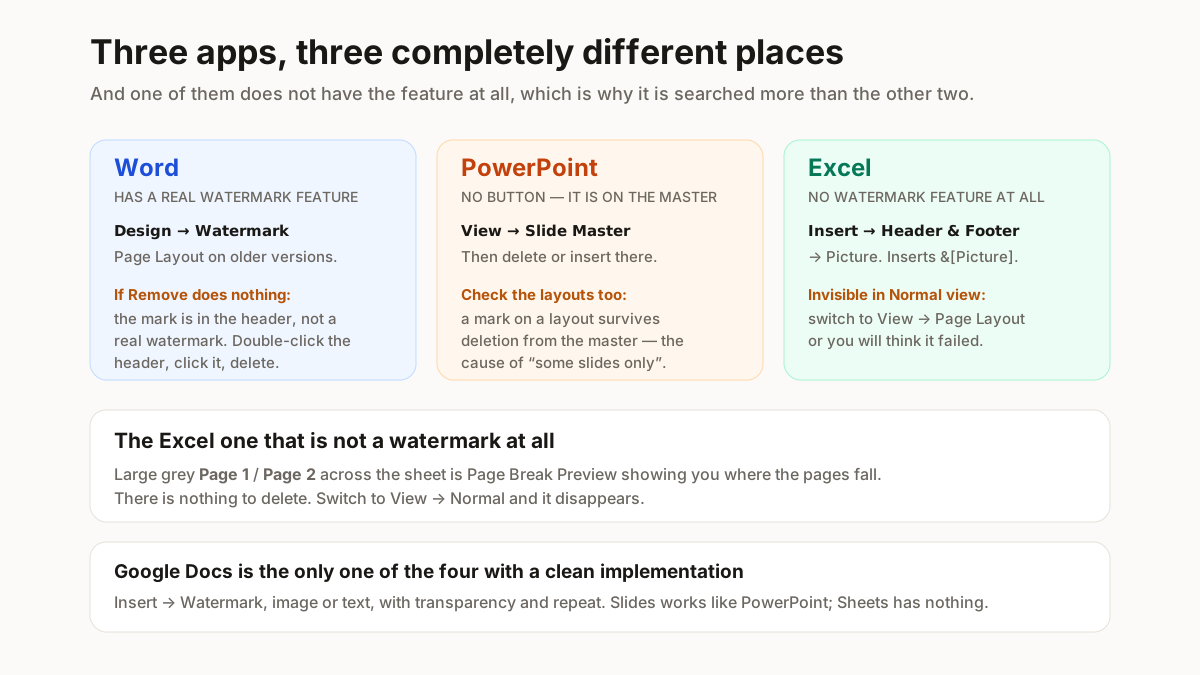
Design → Watermark, then either a preset like CONFIDENTIAL or DRAFT, or Custom Watermark for your own text or a picture. Older versions put it under Page Layout.
Making it appear on every page
Word watermarks live in the header, so they repeat automatically — unless your document has section breaks with Link to Previous switched off. Then each section needs its own, which is why a watermark sometimes covers the first 8 pages and then stops.
To fix it: double-click the header in the section that is missing the mark, and switch Link to Previous back on, or apply the watermark again there.
Using your logo instead of text
Custom Watermark → Picture watermark. Leave Washout ticked — it fades the image so text stays readable. Unticking it puts a full-strength logo behind your paragraphs and makes the document unusable.
How to add a watermark in PowerPoint
No watermark button, so it is done on the slide master — which is also why it then appears on every slide automatically.
View → Slide Master. Select the master at the top of the left pane, then Insert → Text Box or Insert → Pictures for a logo. Place it, set the transparency, and close Master View.
Applying it to all slides
Putting it on the master rather than a layout is what makes it apply to everything. Add it to one layout and only slides using that layout get it — which is the usual cause of a watermark appearing on some slides and not others.
Making it sit behind the content
Right-click the mark and choose Send to Back, then set transparency — for a text box, Format Shape → Text Options → Text Fill → Transparency, around 80%. Without Send to Back your watermark covers the text on every slide.
How to add a watermark in Excel
Excel has no watermark feature. This is not an oversight in the guide — the feature genuinely does not exist, and the confusion is the reason the search exists.
The way it is done is a header image:
Make your watermark as an image first — a PNG with your text, ideally faded and on a transparent background. Then Insert → Header & Footer, click into the header section, and choose Picture. Excel inserts a placeholder reading &[Picture].
It looks like nothing has happened, because the header is invisible in Normal view. Switch to View → Page Layout to see it. Use Format Picture beside the Picture button to fade it and to push it down the page so it sits behind the data instead of at the very top.
It appears on printouts and in PDF exports, which is usually the point.
Google Docs, Slides and Sheets
Docs has a proper one: Insert → Watermark, image or text, with transparency and a Repeat option in the side panel. Of the 3 implementations this is the cleanest.
Slides has none, so it works like PowerPoint: Slide → Edit theme, add your text box or image to the theme, adjust transparency, close the editor. Everything using that theme picks it up.
Sheets has none either and no header-image trick to fall back on. The workaround is a drawing placed over the cells, or — usually better — export to PDF and watermark it with the tool at the top of this page.
What a watermark does and does not protect
Worth being straight about, because the tool is easy to over-trust.
A text watermark on a PDF is removable by anyone with the tool on our own remover page. It marks ownership; it does not secure anything. Treating it as protection is the mistake.
Locking the content down genuinely takes 1 of 2 stronger options and both cost you something. Flatten the document to images before sending — the watermark becomes unremovable, and so does your text, which means nobody can copy your product names into their own sheet either. Or password-protect it, which controls who opens it rather than what they do afterwards.
For a rate card going to buyers you want to be able to read and act on it. So in practice the visible watermark is the right trade — it is a signature, not a lock, and a signature is what a price list needs.
Related free seller tools
Frequently Asked Questions
Is this PDF watermark tool free?
Yes, no signup and no watermark on the output beyond the one you asked for. It runs in your browser using a client-side PDF library, so there is no upload and no queue.
Can I use my own logo?
The engine supports an image watermark and the on-page controls currently cover text. For a logo today, the reliable route is Word or PowerPoint using their picture-watermark options, both described above — and in Word, leave Washout ticked so the text under it stays readable.
Does the watermark go on every page?
Every page by default. The engine also supports a page range, so a cover-only or first-page-only mark is possible. In Word the equivalent depends on section breaks — a document with Link to Previous switched off needs the watermark applied per section.
Can someone remove the watermark I add?
Yes. A text watermark on a PDF marks ownership instead of securing anything, and our own remover page will lift the removable kind. Real protection means flattening the document to images, or password-protect it — accepting that flattening also stops your buyer copying text out.
How do I add a stamp to a PDF?
Use the Stamp tab rather than the watermark one. A stamp is opaque, upright and cornered — APPROVED, PAID, RECEIVED — whereas a watermark is faint and diagonal. Pick a preset or type your own wording, choose a corner, and keep the box on so it reads as a stamp at a glance.
How do I add a tick mark or check mark in a PDF?
Choose the Tick symbol on the Stamp tab. Elsewhere it is awkward, because the standard PDF fonts contain no tick glyph — Helvetica and Times do not have one, which is why typing a tick often gives you a blank box. The tick comes from ZapfDingbats, a symbol font every PDF reader carries.
How do I tick a checkbox on a PDF form?
If the PDF has real form fields, just click the checkbox — it is interactive and needs no tool. If it is a flat scan of a printed form there is nothing to click, and placing a tick symbol where the box is drawn is the correct answer.
Can I add a header and footer to a PDF?
Yes, on the Header & footer tab — a header along the top, a footer along the bottom, and optional page numbering as 3 / 12. Page numbers are worth switching on for anything sent by WhatsApp, because a forwarded rate card arrives as loose pages and the numbering is what tells a buyer she is missing some.
Does it work on my phone?
Yes. The processing happens in the browser, so it works on a phone browser as well as a laptop. A large PDF is limited by your device memory instead of by any upload limit, since nothing is uploaded.
Why is there no watermark button in Excel?
Because Excel does not have the feature. What people call an Excel watermark is a header image: Insert → Header & Footer → Picture. The result is invisible in Normal view, which is why it seems not to have worked — switch to View → Page Layout to see it.
How do I put a watermark on all PowerPoint slides at once?
Add it to the slide master rather than to a layout or a slide. View → Slide Master, select the master at the top of the pane, insert your text box or image, then Send to Back and set transparency. Adding it to a layout only affects slides using that layout.
Will it make my file much bigger?
A text watermark adds almost nothing — the text and its drawing instructions are a few bytes per page. Tiling across every page adds more because each repetition is another instruction, and a logo adds the size of the image once, regardless of how many pages use it.
A visible watermark is a signature, not a lock. It keeps your name on a document as it travels, which is exactly what a price list needs — but anyone determined enough can take it off, so do not send anything through a watermark that you could not afford to have copied.