How to sell on Meesho: seller registration steps
To create a Meesho seller account, click “Start Selling” on supplier.meesho.com and sign up with an active bank account and a GSTIN, or an Enrolment ID / UIN if you are not GST-registered. Meesho’s pricing page says registering is free (read 11 Oct 2026). Our Meesho seller registration, step by step guide walks through every sign-up screen. Meesho’s own How it works page sets out four steps (read 11 Oct 2026):
- Sign up for free on the Meesho supplier sign-up page.
- Upload your product and catalog in the Meesho Supplier Panel.
- Receive and ship orders: print the label in the panel and hand the parcel to pickup.
- Receive payments into your bank account on a 7-day payment cycle.
No GST yet? Read sell on Meesho without GST first, since the Enrolment ID route has its own limits. Keep the account in the same name as the bank account: Meesho says payment is “deposited directly in your bank account on the 7th day from order delivery”, including Cash on Delivery orders.
Meesho seller login: where to sign in
Sign in at supplier.meesho.com: the “Login” link opens the Supplier Panel login page, where you enter your email ID or mobile number and your password. seller.meesho.com lands on a Meesho shopper page that says it could not be found, so bookmark the Supplier Panel login page. Our Meesho seller login and Supplier Panel guide shows each screen.
The login screen asks for a password, not an OTP; “Forgot password?” offers “Get OTP on your mobile number”. There is no separate supplier app on Google Play: Meesho’s developer page lists one app, the shopping app for buyers (checked 11 Oct 2026), so any “seller app” that asks for your panel password is a third party.
For help, Meesho’s seller site says “Meesho Supplier Support Available 24/7”, and the route is a ticket: Support in the left menu, the Help tab first, then Raise a Ticket, with the reply in My Tickets (Meesho learning hub, read 11 Oct 2026). Meesho’s supplier pages show no helpline number (checked 4 Oct 2026), so treat a “customer care number” from a forum as unofficial.
Meesho seller charges and pricing
Meesho states that it charges 0% commission from suppliers across all product categories, so the price you set is not cut by a sales commission (Meesho How it works, read 11 Oct 2026). Shipping and returns still come out of what each piece earns, and a return earns nothing for the trip it already made.
Meesho charges explained breaks down what is deducted from an order, and the Meesho commission calculator shows what you keep at a given selling price. We print no shipping slabs or fee amounts on this hub, because they depend on your product’s weight and category; take the figure Meesho shows you on the day you price.
Listing products on Meesho
Listing on Meesho means filling the catalog form in the Supplier Panel: the category, product details, price, images, and the HSN code and GST rate for each product. If Meesho’s quality check rejects it, Meesho catalog rejected: fixes lists the common reasons.
Check the Meesho image guide before shooting, and fix the dimensions in the free Meesho image resizer. For the tax fields, find the HSN code for your product and the rate in GST on clothes. Upload many products at once with Meesho bulk listing.
Shipping, labels, returns and RTO
Shipping on Meesho starts when an order lands in the Supplier Panel: you pack the piece, print the label Meesho gives you, and hand the parcel to the pickup partner. The Meesho parcel guide covers packing and handover, Meesho packing material covers covers and tape, and the Meesho delivery partner guide covers pickups. The Meesho shipping cost guide shows how weight and size move the charge, so weigh one packed piece before you price.
Meesho labels print as a full page; the free Meesho label crop cuts them to label size for a thermal printer.
A return is a parcel the customer sends back after delivery; RTO (return to origin) is one that never reached the customer, for example a Cash on Delivery order refused at the door. The Meesho returns for sellers guide covers both, and saree sellers can read the Meesho saree returns analysis 2026, our own study of why sarees come back.
Which Meesho guide do you need?
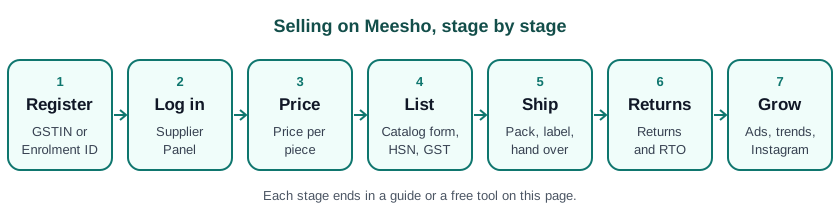
Find the row that matches where you are stuck today. To grow, start with complete catalogs in categories buyers already want; Meesho Ads are not available to sellers without a Regular GSTIN (supplier.meesho.com, read 11 Oct 2026).
| Your situation | Go to |
|---|---|
| No GST yet | Sell on Meesho without GST |
| Can’t log in to the Supplier Panel | Meesho seller login and Supplier Panel guide |
| Catalog rejected | Meesho catalog rejected: fixes |
| First listing | ListMagic or Meesho bulk listing |
| Label won’t print at the right size | Meesho label crop |
| A return came back | Meesho returns for sellers |
| Not sure what to sell | Meesho trending products |
| Need a price per piece | Meesho commission calculator |
All Meesho guides on StitchMagic are listed under marketplace sellers. Last checked: 11 Oct 2026.
Frequently asked questions
How do I create a Meesho seller account?
Click “Start Selling” on supplier.meesho.com and sign up with an active bank account and a GSTIN, or an Enrolment ID if you don’t have GST. Meesho says registering is free (pricing page, read 11 Oct 2026); the registration guide walks through each screen.
Can I sell on Meesho without GST?
Yes, Meesho offers registration with an Enrolment ID instead of a GSTIN; see our without-GST guide for the limits. Meesho Ads, for example, are not available without a Regular GSTIN.
How to login Meesho seller account in app?
Meesho has no separate seller app on Google Play (checked 11 Oct 2026), so log in on the web Supplier Panel at supplier.meesho.com with your email ID or mobile number and password.
What is the Meesho seller helpline or support number?
Meesho’s supplier pages show no helpline number; support works through tickets. In the Supplier Panel, open Support, check the Help tab, then use Raise a Ticket and follow it in My Tickets.
Is selling on Meesho profitable?
It depends on your price per piece after shipping and returns, since Meesho states 0% commission; check each product in the commission calculator. A product with frequent returns can lose money even when the sale price looks fine.
How to get 100 orders a day on Meesho?
There is no fixed recipe; orders follow listings that appear in Meesho search at a price buyers accept. Add complete catalogs in a category that already sells before you spend on Meesho Ads.
Registered on Meesho? ListMagic, a Chrome extension, fills the Supplier Panel catalog form for you; you review and press Submit. Start on the Free plan.
List Meesho catalogs with ListMagicRelated
Checked by the StitchMagic team on 11 Oct 2026. StitchMagic is a set of free tools and one AI listing agent (ListMagic) for online sellers in India that helps them list faster on Meesho, Flipkart and Amazon.in and sell more. Found an error? Tell us; we correct with a dated note.