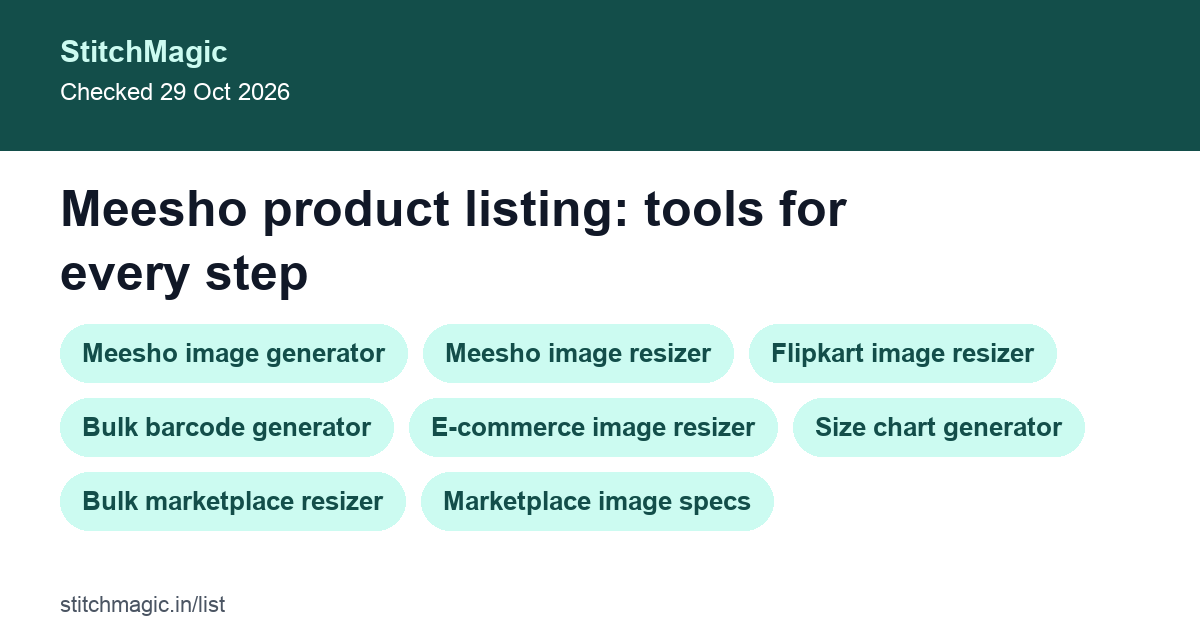
Which Meesho product listing tool do you need?
| Your step | Go to |
|---|---|
| Make a listing photo for Meesho | Meesho image generator |
| Fit an existing photo to Meesho | Meesho image resizer |
| Check what Meesho accepts | Meesho image guide |
| Resize photos for Flipkart | Flipkart image resizer |
| One photo for Amazon, Flipkart and Myntra | E-commerce image resizer |
| Resize a whole folder of photos | Bulk marketplace resizer |
| Look up another marketplace’s photo rules | Marketplace image specs |
| Barcodes for many SKUs | Bulk barcode generator |
| One barcode or QR code | Barcode generator |
| Size chart for a kurti, blouse or suit | Size chart generator |
| Upload many products at once | Meesho bulk listing guide |
| Decide the selling price | Meesho pricing guide |
| Fill the catalog form faster | ListMagic |
Image sizes and file rules sit on each linked page with the date they were checked. Last checked: 29 Oct 2026.
Meesho listing images
Start with the photo: the Meesho image generator makes the listing image, and the Meesho image resizer fits a photo you already have to Meesho’s size without cutting the product off. Meesho’s open supplier pages give photo rules but no pixel size (checked 4 Oct 2026), so our Meesho image guide sets what Meesho says beside what seller guides add, with the date checked. Read it once before a shoot rather than after a rejected catalog.
Listing image size for Flipkart, Amazon and Myntra
To make listing images for Flipkart and Amazon, resize one master photo per marketplace instead of shooting again. The Flipkart image resizer outputs Flipkart’s size; the e-commerce image resizer turns one photo into versions for Amazon, Flipkart, Meesho and Myntra; the bulk marketplace resizer does a whole batch and returns a ZIP. Flipkart’s rules, with the source and check date, are on our Flipkart image size page, and the other marketplaces sit in the marketplace image specs.
Barcodes and size charts for your listing
Give each SKU its own barcode before the first order ships, so packing and returns match the right piece. Paste your SKU list, one per line, into the bulk barcode generator and it lays the codes out on a sticker sheet or thermal roll; for a single retail barcode or a QR code, use the barcode generator.
Measure the garment itself, not a body chart copied from another brand, so the buyer picks the size that fits and the piece stays sold. Put those numbers in the size chart generator, which makes a kurti, blouse, suit or lehenga chart with your shop name on it.
How to list products on Meesho: single or bulk upload
To list products on Meesho, sign in to the Supplier Panel, open Catalog Upload, and choose Add Single Catalog for one product or Add Bulk Catalog for many. New sellers register first on Meesho’s sign-up page. Bulk upload means adding many products at once with the Excel template Meesho gives for your category. Single upload suits a first design you want to test; bulk upload pays off once a catalog runs to several colours or sizes. The Meesho bulk listing guide has the steps; the Meesho pricing guide helps you set the selling price.
Fill the Meesho listing form with ListMagic
ListMagic is our Chrome extension that fills the Meesho Supplier Panel catalog form for you; you check the fields and press Submit yourself. It runs in Chrome on a laptop. You start on the Free plan, and the Seller Pass is ₹99 a month (StitchMagic pricing, checked 16 Oct 2026).
Frequently asked questions
How do I list products on Meesho?
Sign in to the Meesho Supplier Panel, add a catalog by single or bulk upload using the category template, then add images, sizes and price. The Meesho bulk listing guide shows the template step by step.
What image size does Meesho need for a listing?
Meesho’s open supplier pages state no pixel size; our Meesho image guide gives the size we recommend with its sources, and the Meesho image resizer outputs it.
What is the Flipkart listing image size?
Our Flipkart image size page gives it with its source, and the Flipkart image resizer outputs it.
How do I make barcodes for many products at once?
Use the bulk barcode generator: enter or paste your SKUs, or upload the Excel file, and download the barcodes together as a PDF or a ZIP of images.
How do I add a size chart to my listing?
Make the chart in the size chart generator, then enter the measurements where your Meesho category template asks for them.
Is there a tool that fills the Meesho listing form for me?
ListMagic, a Chrome extension, fills the Meesho Supplier Panel catalog form; you start on the Free plan.
Listing a new catalog on Meesho? Start with the photo buyers see first.
Make your Meesho listing imageRelated
Checked by the StitchMagic team on 29 Oct 2026. StitchMagic is a set of free tools and one AI listing agent (ListMagic) for online sellers in India that helps them list faster on Meesho, Flipkart and Amazon.in and sell more. Found an error? Tell us; we correct with a dated note.